
Note di rilascio
March 2026
Dicembre 2024
Luglio 2024
February 2024
Settembre 2023
May 2023
Gennaio 2023
November 2022 Ottobre 2022 Settembre 2021 Agosto 2021 May 2021 Marzo 2021 Agosto 2020 Luglio 2020 Giugno 2020 Maggio 2020 Aprile 2020
Settembre 2023
May 2023
Gennaio 2023
November 2022 Ottobre 2022 Settembre 2021 Agosto 2021 May 2021 Marzo 2021 Agosto 2020 Luglio 2020 Giugno 2020 Maggio 2020 Aprile 2020
September 29, 2023
v3.1.33Major feature
CMS headless disponibile in versione BETA
Il nostro progetto più importante, le integrazioni con i CMS headless, è ora disponibile in versione BETA. Questa funzionalità consente agli utenti di collegare una delle piattaforme CMS headless disponibili e creare pagine dinamiche associando i dati del CMS agli elementi nell'editor visivo di Teleport.
Il nostro progetto più importante, le integrazioni con i CMS headless, è ora disponibile in versione BETA. Questa funzionalità consente agli utenti di collegare una delle piattaforme CMS headless disponibili e creare pagine dinamiche associando i dati del CMS agli elementi nell'editor visivo di Teleport.
Available integrations
The first five Headless CMSs you can integrate are Strapi, Contentful, Caisy, Flotiq and WordPress .
Users can integrate with only one project and CMS for now, and the connection will be established inside the editor using unique tokens.
Once the connection is complete, users can use all the data stored in the CMS inside Teleport.
Read more about integrations on our Help center.
The first five Headless CMSs you can integrate are Strapi, Contentful, Caisy, Flotiq and WordPress .
Users can integrate with only one project and CMS for now, and the connection will be established inside the editor using unique tokens.
Once the connection is complete, users can use all the data stored in the CMS inside Teleport.
Read more about integrations on our Help center.
Dedicated CMS elements
CMS Pages
When a CMS connection is final, CMS List and Details pages are generated automatically based on the content types that you have selected to import.
You can find these pages marked in green in the left panel under your regular pages.
CMS List pages contain all entries for a specific content type created in the CMS. By default, they all appear one beneath the other, and users can apply various actions: sort, filter, and pagination.
Ex: A list page can be the main page of a blog that lists all of the articles or a hub page for related landing pages.

CMS Pages
When a CMS connection is final, CMS List and Details pages are generated automatically based on the content types that you have selected to import.
You can find these pages marked in green in the left panel under your regular pages.
CMS List pages contain all entries for a specific content type created in the CMS. By default, they all appear one beneath the other, and users can apply various actions: sort, filter, and pagination.
Ex: A list page can be the main page of a blog that lists all of the articles or a hub page for related landing pages.
CMS Details pages
contain all of the data for an individual entry. These pages have unique properties, including the option to
change the URL, meta title, description, social image
, and more dynamically.
Example: Using a details page, you can create a dynamic page that allows users to generate entire lists of blog posts or landing pages automatically.

Example: Using a details page, you can create a dynamic page that allows users to generate entire lists of blog posts or landing pages automatically.
CMS Item element
The CMS Item element can be added on any page, even non-cms pages, and will only use the data from a single entry of a specific type created in the CMS.
When added to the canvas, the item will display a default message. Once a data source is selected, you can drop regular items such as containers, text, or images and link data from the CMS to them.
You can select which item to display based on its ID.
The CMS Item element can be added on any page, even non-cms pages, and will only use the data from a single entry of a specific type created in the CMS.
When added to the canvas, the item will display a default message. Once a data source is selected, you can drop regular items such as containers, text, or images and link data from the CMS to them.
You can select which item to display based on its ID.
Elemento Elenco CMS
L'elemento Elenco CMS può essere aggiunto a qualsiasi pagina per visualizzare e personalizzare TUTTI gli elementi di un elenco creato nel CMS.
Quando viene aggiunto all'area di lavoro, l'elenco mostrerà anche un messaggio predefinito. Dopo aver selezionato la sorgente, l'aggiunta di elementi o la modifica di un elemento dell'elenco influirà su tutti gli elementi di quell'elenco. In questo modo puoi configurare facilmente tutte le voci contemporaneamente.
Dopo aver creato un elenco CMS, puoi configurarlo, filtrarne e ordinarne gli elementi e aggiungere l'impaginazione.
L'elemento Elenco CMS può essere aggiunto a qualsiasi pagina per visualizzare e personalizzare TUTTI gli elementi di un elenco creato nel CMS.
Quando viene aggiunto all'area di lavoro, l'elenco mostrerà anche un messaggio predefinito. Dopo aver selezionato la sorgente, l'aggiunta di elementi o la modifica di un elemento dell'elenco influirà su tutti gli elementi di quell'elenco. In questo modo puoi configurare facilmente tutte le voci contemporaneamente.
Dopo aver creato un elenco CMS, puoi configurarlo, filtrarne e ordinarne gli elementi e aggiungere l'impaginazione.
Rich text element
Using the Rich text element from the editor, you can import and display big chunks of HTML from the WYSIWYG editor in the CMS. Once a source is selected, the entire rich text block will be available for editing using CSS classes and combinators.
Using the Rich text element from the editor, you can import and display big chunks of HTML from the WYSIWYG editor in the CMS. Once a source is selected, the entire rich text block will be available for editing using CSS classes and combinators.
Updates
Custom fonts upload improved
We simplified how you can add custom fonts to your projects. Now, you only need to go to Project settings -> Fonts , upload your font file, and you can immediately use it inside of your project.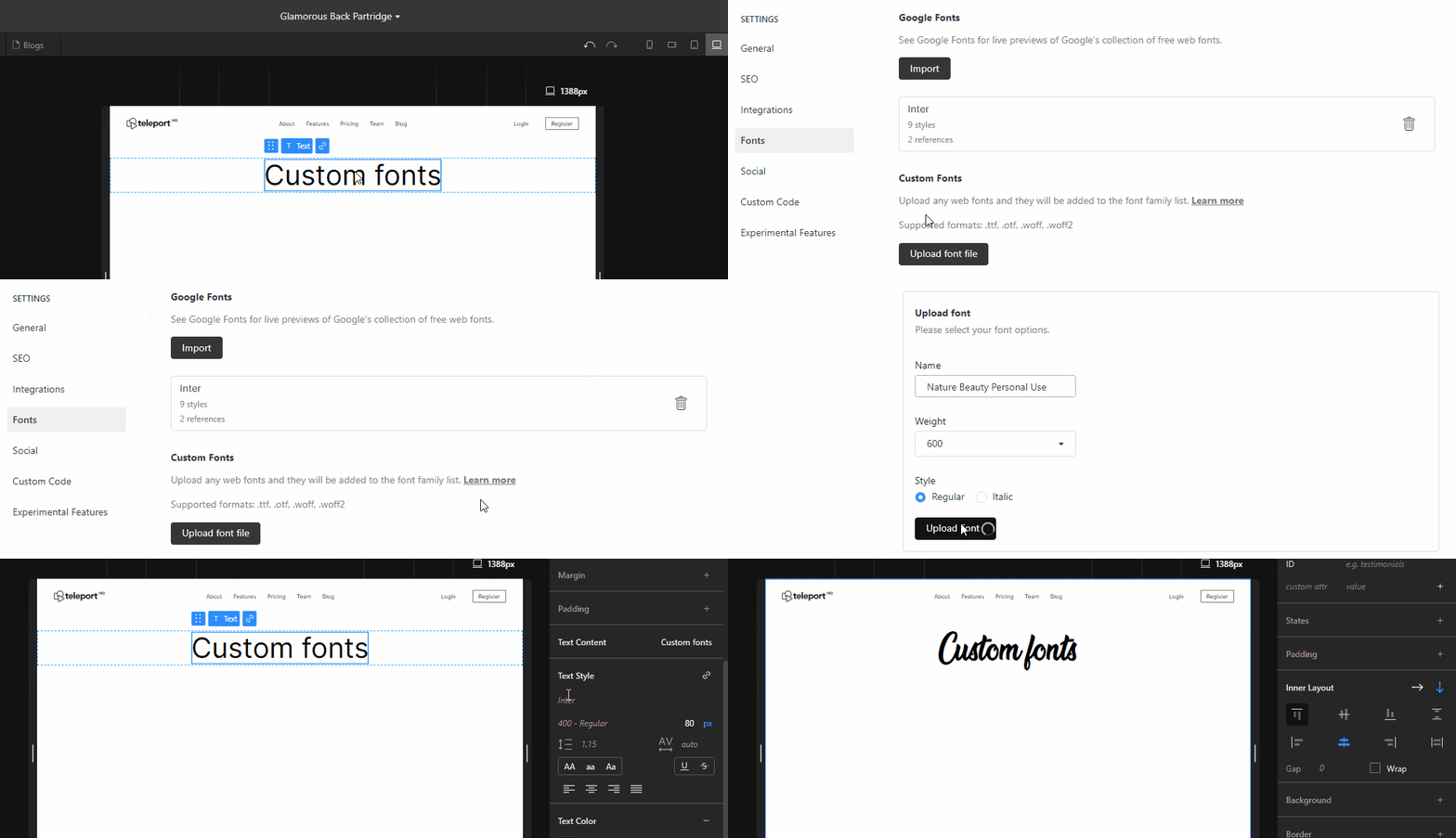
We simplified how you can add custom fonts to your projects. Now, you only need to go to Project settings -> Fonts , upload your font file, and you can immediately use it inside of your project.
URL annidati
Abbiamo aggiunto la possibilità di creare URL annidati nei tuoi progetti Teleport. La procedura è la stessa che si segue per creare un URL standard, ma invece di usare uno slug semplice, puoi aggiungere “/” in qualsiasi punto. Ad esempio, puoi usare uno slug come: /templates/blog e otterrai l’URL www.yourdomain.com/templates/blog .
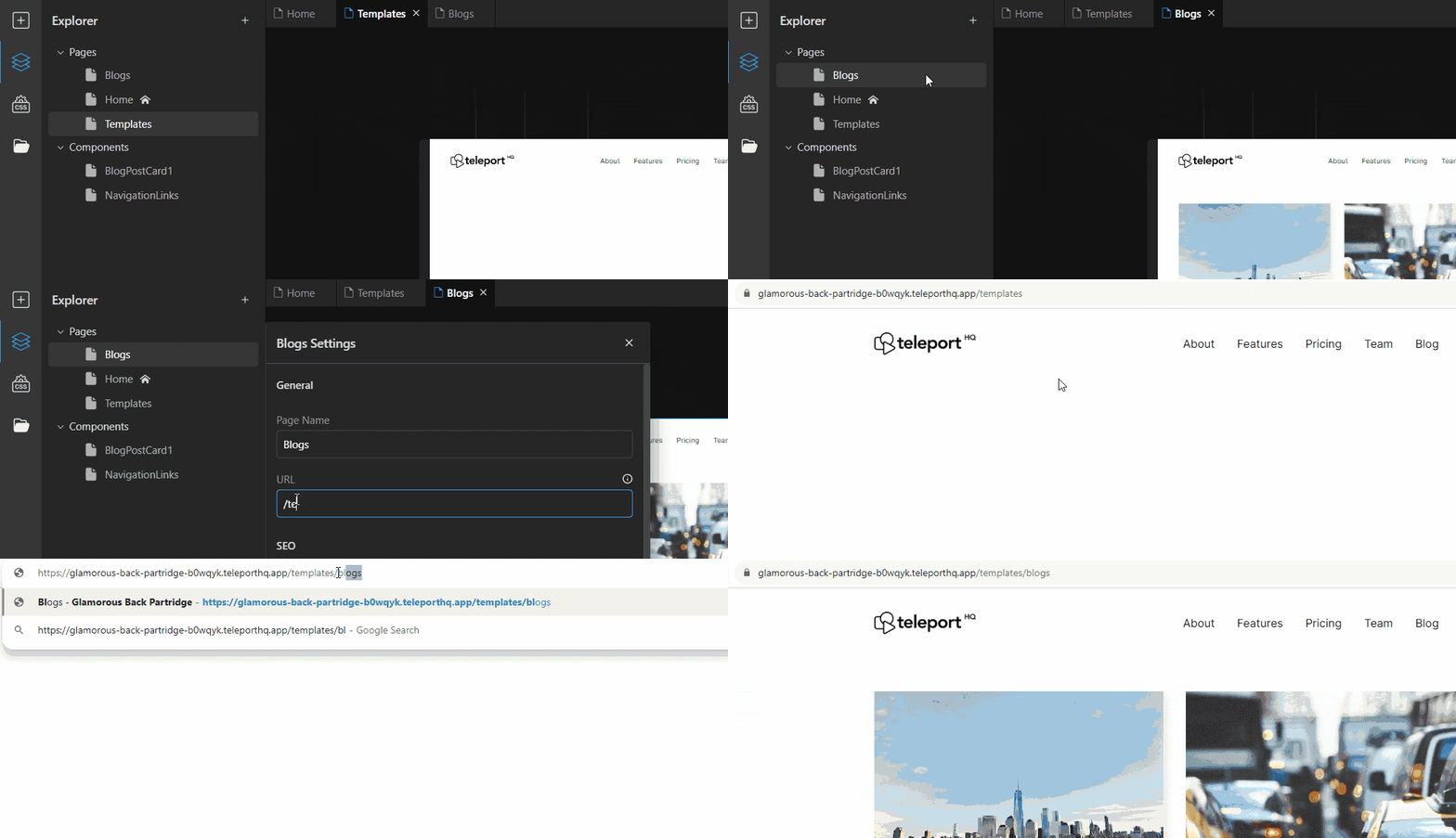
Abbiamo aggiunto la possibilità di creare URL annidati nei tuoi progetti Teleport. La procedura è la stessa che si segue per creare un URL standard, ma invece di usare uno slug semplice, puoi aggiungere “/” in qualsiasi punto. Ad esempio, puoi usare uno slug come: /templates/blog e otterrai l’URL www.yourdomain.com/templates/blog .
Video tutorial aggiunti all’Editor
Abbiamo rielaborato la parte inferiore del Pannello laterale per mettere maggiormente in risalto le risorse. Abbiamo anche aggiunto un nuovo Icona video che apre un pannello con alcune delle nostre video tutorial . Qui verranno aggiunti anche nuovi video.
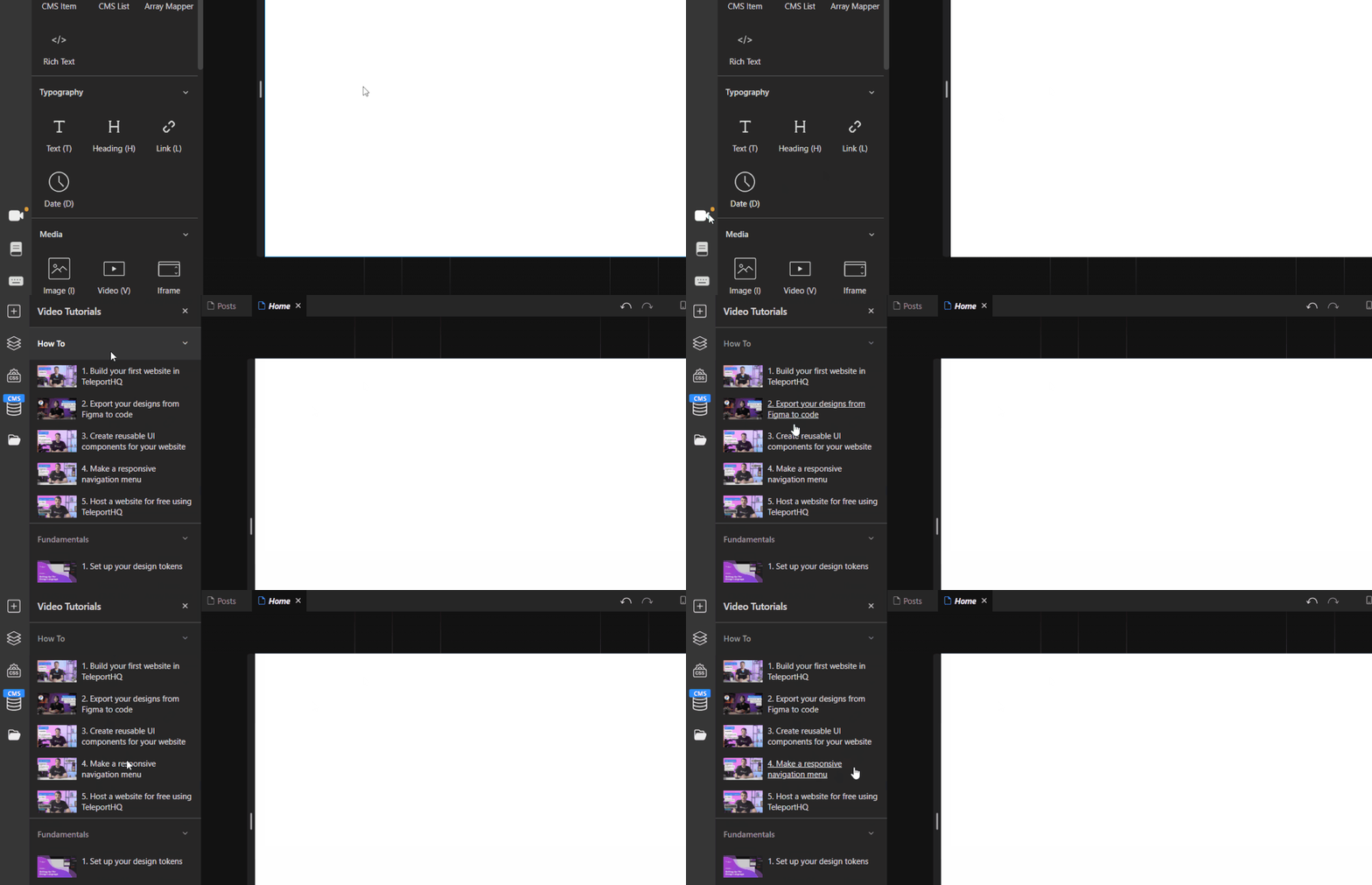
Abbiamo rielaborato la parte inferiore del Pannello laterale per mettere maggiormente in risalto le risorse. Abbiamo anche aggiunto un nuovo Icona video che apre un pannello con alcune delle nostre video tutorial . Qui verranno aggiunti anche nuovi video.
Figma plugin reworked
We’ve made a significant update to the Figma plugin, including an updated UI, optimized flow and functionality, and compatibility with the new Figma Dev mode.

We’ve made a significant update to the Figma plugin, including an updated UI, optimized flow and functionality, and compatibility with the new Figma Dev mode.
Miglioramenti e correzioni
- UI Improvements on the assets manager
- No-index switch added to page settings
- Aggiunto un messaggio di avviso quando si pubblica con file privati
- Supporting more font files like .woff or .woff2
- Figma plugin improved when copying large number of .svg files
- Dropdown elements can be made into a component
- Navbar smart element revamped and decluttered
 Built in TeleportHQ